What are the best apps like Procreate for drawing on a tablet?
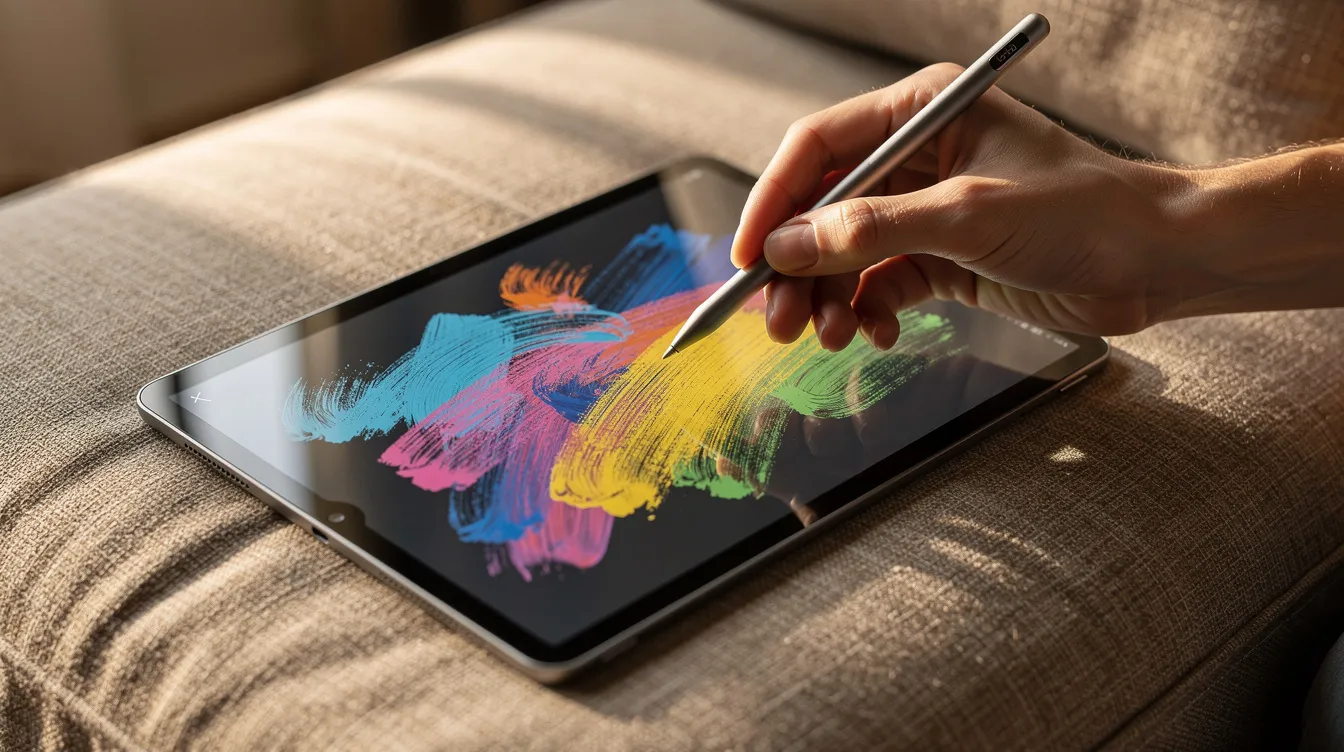
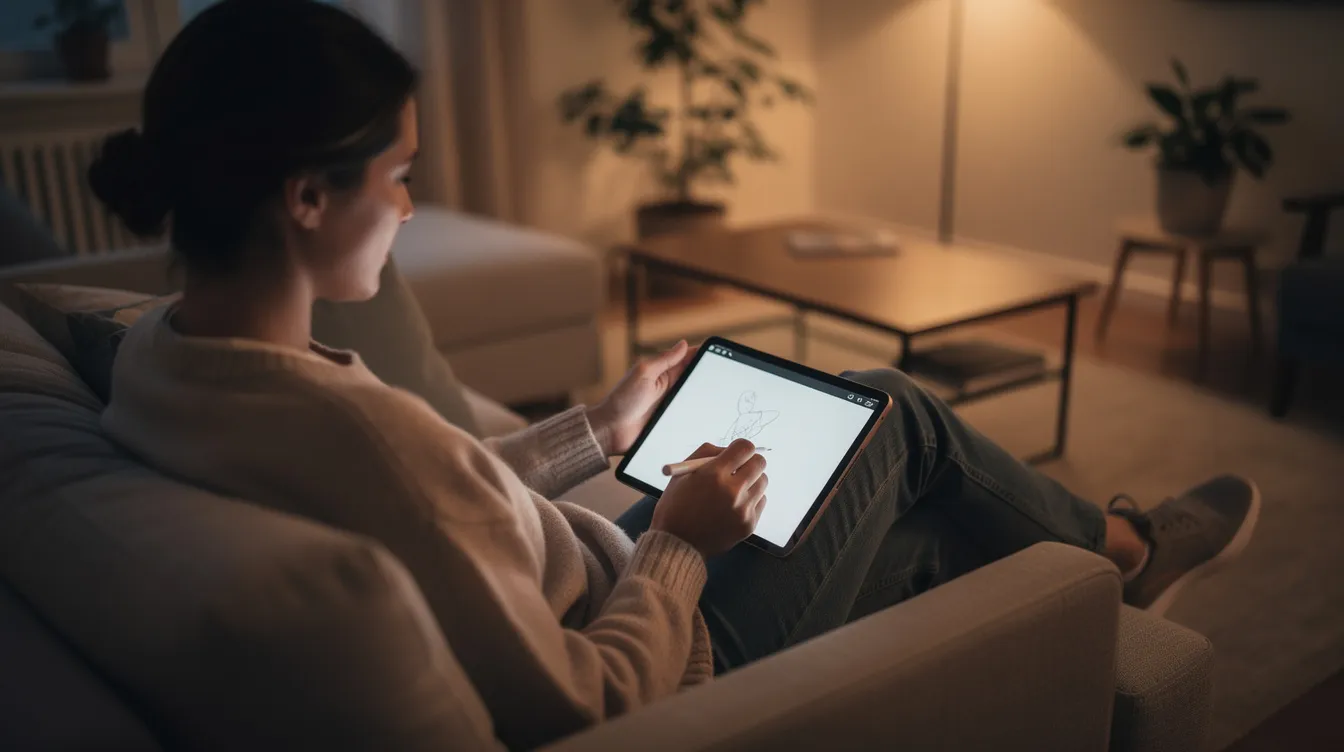
I draw on an iPad in the evenings, mostly from the couch. When I say “procreate apps,” I mean Procreate itself plus the other drawing apps people compare it with. Procreate is a raster-based painting app that excels in speed and tactile flow for digital painting, but it is limited to iPadOS and does not support vector graphics. That means there are good reasons to look at alternatives, whether you need vectors, want a free starting point, or do not own an iPad at all.
I have not put every app here through weeks of daily use. This is a guide to what each app offers, who it suits, and how to pick without wasting an evening on downloads. What I do know well is what matters when you draw night after night: pen feel, a clean interface, and an app that stays out of the way.
Here is the fast answer. The best apps depend on your device, your budget, and what you want to draw:
-
Procreate for all-around illustration on iPad
-
Procreate Dreams for simple animation on iPad
-
Procreate Pocket for iPhone thumbnails
-
Adobe Fresco for watercolor and oil painting effects
-
Autodesk Sketchbook for pure sketching across devices
-
Ibis Paint X for manga, anime, and tons of free brushes
-
Clip Studio Paint for serious comic and manga projects
-
Concepts for infinite-canvas planning
-
Tayasui Sketches for relaxed doodling and watercolor
If you do not have an iPad, the best answer changes. Keep reading.
This is a personal hobby blog. Stylus and Screen sells nothing. No courses, no brushes, no coaching. Just what seems worth limited drawing time for an adult with a day job.
How I Chose Which Procreate-Style Apps To Include
My criteria are personal, not benchmarks. I looked at well-known, actively updated apps that suit an adult beginner or relaxed hobbyist. What matters on the couch: pen feel (lag, pressure response, how a stroke starts and ends) counts for more than any feature list. After that come canvas size against layer count, a good default pencil, ink pen, and soft brush, easy undo gestures, and open export formats. Procreate’s user interface is minimalist and touch-friendly, and that sets the bar. Any app I include should clear a similar bar of intuitive design.
Focus On iPad And Apple Pencil
I only include apps that run comfortably on recent iPads (about 2018 onward) and work well with Apple Pencil. Some also run on iPhone, Mac, or Windows, but the comparison centers on iPad drawing from the couch. Phone-only, desktop-only, animation-only, and photo-only apps are skipped.
Beginner-Friendly Without Hand-Holding
I favor apps where a new user can find a brush, a color, and a layer within the first half hour. Clean interfaces and gentle learning curves beat dense all-in-one studios that overwhelm a tired brain after work. Extra weight goes to smooth lines, simple selections, and easy undo. Procreate is designed for touch-optimized interfaces, and that comfort level is what I want from any alternative too.
Useful For Everyday Hobby Drawing
Each app should handle common hobby tasks: line art, flat colors, simple shading, glow effects, skin tones, and getting a file ready to print at home or through an online printer. Layer limits, canvas sizes, and export formats matter because they affect printing and sharing. Pricing counts: one-time purchases and generous free tiers are easier to recommend than a steep subscription fee for someone who draws a few evenings a week. Prices change, so check store listings before you buy.
The 9 Best Procreate-Style Apps For Casual iPad Drawing
This is a ranked list, but the apps are strong in different areas, so the “best” one depends on what you want to do. I start with Procreate itself, then move through close cousins and apps that cover gaps like comics, vector work, and infinite-canvas sketching.
1. Procreate (iPad)
The app most people mean by “procreate apps.” It handles sketches, line art, color, glow, skin tones, and print-ready exports all in one place.
Why It Stands Out
Procreate offers customizable brush settings and over 200 built-in brushes, covering pencil, ink, paint, and texture. The brush engine feels responsive, and stroke smoothing keeps lines clean without making them mushy. The layout stays simple: brushes on one side, layers and color on the other, and most actions happen through quick gestures. Procreate automatically records a time-lapse of the drawing process, which is a fun way to watch your own progress over months.
Procreate costs $9.99 for a one-time purchase. No subscription, no recurring cost. For a hobby budget, that is hard to beat.
Best For
Adults who just bought an iPad and Apple Pencil and want one main art app to grow into. Also people focused on clean line work, digital coloring, and simple shading, and those curious about printing a few pieces for the wall.
Key Strengths
-
Procreate has strong layering, clipping masks, and blending modes that stay understandable for beginners.
-
Print-size presets at 300 dpi and a large community of brush makers and tutorial creators make it easy to find resources and help.
-
Procreate provides infinite possibilities for color fills using ColorDrop, which speeds up the coloring process.
-
Numerous specialized apps can work seamlessly alongside Procreate to boost workflows. Dedicated companion apps enhance artwork capabilities, and exporting Procreate art to photo editing apps allows for improved color grading. Post-processing app companions help with non-destructive edits and advanced manipulation.
Possible Limitations
Procreate is limited to iPad (plus Pocket on iPhone), so there is no option for Android users or Windows devices. If you do not have an iPad, Krita is a free app with optional upgrades available and advanced features for animation. It runs on Windows, Mac, Linux, and some Android tablets and Chromebooks, making it the first place to look for digital art outside Apple hardware.
Procreate’s layer limits are determined by iPad RAM and canvas size, so older tablets with less memory will allow fewer layers on large canvases. There are no built-in vector tools, the animation features are basic, and the deep brush settings panel can feel intimidating at first.
2. Procreate Dreams (iPad)
The motion and animation app from the same team, built around timelines and moving artwork rather than still illustrations.
Why It Stands Out
Its timeline feels more like drawing and nudging layers than editing in a heavy video editor. It reads Procreate files, so still pieces can be brought to life with motion and effects. Unlike Clip Studio Paint, which supports frame-by-frame animation in a more traditional pipeline, Dreams leans into painterly, expressive motion.
Best For
Hobbyists who already enjoy Procreate and want simple animated loops, moving posters, or social clips. It suits people who prefer creative, loose animation over rigid frame-by-frame pipelines.
Key Strengths
Friendly timeline and keyframe tools, Apple Pencil pressure for drawing directly into the timeline, and good results for short loops and motion experiments without complex video software.
Possible Limitations
Not a replacement for Procreate for still illustration and print. Projects are heavier on storage, which matters on smaller iPads, and timelines have a learning curve for first-time animators.
3. Procreate Pocket (iPhone)
The smaller sibling made for iPhone, useful as a pocket sketchbook when the iPad is not around.
Why It Stands Out
It brings much of the main Procreate feel to a phone, handy for quick ideas, thumbnails, and color tests on the go.
Best For
Adults who commute or travel and want a daily sketch habit without carrying an iPad. Also people who rough out ideas on the phone, then refine them later on an iPad or desktop app.
Key Strengths
Procreate-style brushes and layers scaled to a small screen, good for quick thumbnail planning, at a low one-time price.
Possible Limitations
The small screen makes detailed rendering and text harder on the eyes, so it works better as a sketching stage than for large prints. No Android version.
4. Adobe Fresco
Adobe Fresco blends vector and raster brushes, includes live watercolor and oil effects, and ties into Adobe accounts for people already in that world. Adobe Fresco provides realistic watercolor and oil simulations not available in Procreate.
Why It Stands Out
Its live natural brushes behave like moving water or thick paint, which is fun for loose painting and backgrounds. Mixing vector and pixel brushes on one canvas gives crisp shapes next to soft shading.
Best For
Hobbyists who use Adobe Photoshop or Illustrator at work and want something familiar on the iPad. Also people drawn to watery, textured painting styles that mimic traditional media.
Key Strengths
Live watercolor and oil brushes, vector brush options for clean scalable lines, and cloud syncing of brushes and files with Adobe desktop apps for mixed workflows. Adobe Fresco is free with optional in-app purchases, which makes it accessible for hobbyists.
Possible Limitations
Some features sit behind a subscription, which can feel heavy for a part-time hobby, and the interface has more panels than a pure beginner may want.
5. Sketchbook
A long-standing drawing app with a clean interface, strong pencils and inking tools, and a generous free offering. Sketchbook is free and available on multiple platforms. Check the current store listing for availability and pricing, since ownership and plans have changed over the years.
Why It Stands Out
It feels close to a real sketchbook: light interface, quick to open, and it encourages loose drawing and studying form and gesture.
Best For
People who want a digital version of a paper sketchbook for studies and ideas, and those who find Procreate’s feature set heavy and want something focused on lines and basic color.
Key Strengths
Comfortable pencil and ink brushes, a minimal tool layout that suits short sessions, and cross-platform availability. Autodesk Sketchbook is available on Android, Windows, and macOS, so anyone who also draws on a laptop or desktop can use the same app.
Possible Limitations
Fewer specialty brushes and effects than Procreate or Ibis Paint X, and no built-in marketplace for brushes and textures.
6. Ibis Paint X
Popular on phones and tablets for anime, manga, and clean digital illustration, with many free brushes and tools. Ibis Paint X works on both Android and iOS, which gives it a wider audience than iPad-only apps.
Why It Stands Out
It leans into comic-style art, with stabilizers for smooth lines, lots of screen tones, and strong selection tools. Ibis Paint X offers over 300 brushes for free, making it a good way to try digital art at no cost.
Best For
Adults who love manga or anime and want an app that already thinks in panels, screentones, and speech bubbles, and who do not mind a busier interface.
Key Strengths
Ibis Paint X offers over 300 brushes for digital art with no separate purchases required. Line stabilization smooths shaky inking, and strong layer, selection, and filter tools handle multi-panel pages well.
Possible Limitations
The free version is ad-supported, which some find distracting, and the interface can feel crowded to someone used to Procreate’s minimalist layout. Some features require in app purchases.
7. Clip Studio Paint for iPad
A deep, professional-grade drawing and comics app on iPad, with powerful brushes, panel tools, and text features. Clip Studio Paint is popular for comic creation and available on multiple platforms.
Why It Stands Out
Its strength is comics and illustration, with advanced tools for panels, balloons, 3D references, and perspective rulers, which makes clean inking easier. Apps like Clip Studio Paint provide better vector capabilities than Procreate. Clip Studio Paint is ideal for comic and manga creation, and it suits people who want to finish pages rather than just sketch.
Best For
Hobbyists serious about multi-page comics or graphic novels in spare time, and digital artists who know the desktop version and want the same toolset on the couch.
Key Strengths
Built-in panel tools, speech balloons, and lettering. Extensive brush customization with a downloadable materials library. Perspective rulers and 3D mannequins for complex scenes. Clip Studio Paint supports frame-by-frame animation as well. On desktop, Clip Studio Paint costs $49.99 for a one-time payment.
Possible Limitations
iPad pricing is subscription-based and can add up for a casual hobby, so readers should check what they are buying. The dense interface needs a longer learning period than Procreate.
8. Concepts
An infinite-canvas, vector-leaning app that feels half sketchbook, half whiteboard. Concepts provides an infinite canvas for drawing, so think of it as a notebook with superpowers.
Why It Stands Out
You can zoom endlessly, rearrange strokes, and keep a whole project on one long canvas. Lines stay sharp when zoomed, which can change how someone plans drawings or comic pages.
Best For
Adults who use the iPad for drawing and planning alike (mind maps, room layouts, visual notes), and people who like sketching characters with notes written around them.
Key Strengths
An infinite canvas for thumbnails and notes together, editable vector-style shapes and strokes, and measurement and snapping tools for technical layout.
Possible Limitations
It is a different mindset from page-based drawing, and the vector approach feels less painterly for anyone wanting soft shading and textured brushes.
9. Tayasui Sketches
A gentle, minimal app that imitates a simple sketchbook. Tayasui Sketches is designed for quick sketches and watercolor art, with an attractive pencil, ink, and watercolor toolset and a very clean interface.
Why It Stands Out
It puts nearly all the focus on canvas and brushes, a calm place to doodle, study forms, or wind down at the end of the day.
Best For
Adults overwhelmed by deep menus who want something like opening a paper notebook, and people whose goal is daily sketching and play, not print-ready files.
Key Strengths
A very simple brush picker and toolbar for short, relaxing sessions, a nice watercolor simulation, and a free version that covers basic sketching with paid upgrades for more tools.
Possible Limitations
Fewer advanced layer and adjustment options than Procreate, so it is not ideal as a main app for detailed illustration for print or paid commissions.
Quick Comparison Of These Procreate-Style Apps
A fast cheat sheet, not a full feature table:
-
Procreate: best all-around choice for hobby illustration, line art, color, and simple print work on iPad.
-
Procreate Dreams: best for adding motion and short animation to Procreate artwork.
-
Procreate Pocket: best for iPhone thumbnails and quick sketching on the go.
-
Adobe Fresco: best for watercolor and oil effects, or anyone already in an Adobe workflow.
-
Sketchbook: best for pure sketching sessions and construction drawing practice.
-
Ibis Paint X: best for manga and anime with lots of tones and free brushes.
-
Clip Studio Paint: best for serious comic and manga projects with many pages and panels.
-
Concepts: best for infinite-canvas planning, diagrams, and design sketches.
-
Tayasui Sketches: best for relaxed doodling and light watercolor-style sketches.
How To Choose The Right Procreate-Style App For You
Many adults only have one or two evenings a week to draw, so the right app is the one that makes you want to open it often. Here is my process for starting on a new device: check what runs on your tablet first, then pick two apps rather than six (one free, one paid). Draw the same simple object, like a mug or a shoe, for ten minutes in each. Watch your hand, not the menus, and notice where the stylus feels natural and where you fight it. Then settle on one app for a month and do not switch mid-month. Once you have chosen, try some beginner exercises to try in that app before you start a finished piece.
Beyond those nine, a few other apps deserve a mention depending on your device and style. MediBang Paint is lightweight and cloud-friendly for beginners, and it supports cloud syncing across Android, iOS, and desktop, making it accessible for comic creators who work on more than one device. Infinite Painter offers a professional drawing experience on Android and iOS with over 160 natural brushes and a free version with in-app purchases. ArtFlow features a simple UI for beginners to doodle on Android. ArtRage simulates real-life painting tools like oil paints and mimics traditional painting tools, available on multiple platforms. ArtStudio Pro is priced at $11.99 for a one-time purchase and works as a solid Procreate alternative on iPad. Affinity Designer complements Procreate with sharp vector graphics and typography for anyone who needs scalable logos or lettering.
Choose Based On Budget And Pricing Model
One-time purchases (Procreate at $9.99, ArtStudio Pro at $11.99) are predictable and low risk. Subscriptions (Clip Studio Paint on iPad, some tiers of Adobe Fresco) add up if you draw only a few hours a month. Free tiers from Sketchbook, Ibis Paint X, Tayasui Sketches, and Concepts are a great idea for testing what feels right before buying. My advice for beginners: do not pay at first. Try free apps for a few weeks, learn what you actually use, then pay for the features you miss.
Choose Based On The Kind Of Art You Want To Make
Think in concrete goals. Comics and manga lean toward Clip Studio Paint or Ibis Paint X. Loose painting leans toward Procreate, Fresco, or Tayasui Sketches. Planning and diagrams lean toward Concepts. Getting inspired involves using tools like Pinterest and moodboard apps before you even open your drawing app. Many people keep two popular apps: one for polished pieces and one for messy sketching.
Choose Based On Workflow And Output
Think about where the final image goes: social sharing, printing at home, ordering prints, or dropping files into a desktop layout program. If printing is a real goal, resolution and color control in Procreate, Fresco, and Clip Studio Paint matter more. MediBang Paint offers cloud syncing for cross-device access, handy if you start on a tablet and finish on a PC. An app from the same family as your desktop software can make the process of exporting and editing seamless.
Practical habits that matter in any new app: keep stroke smoothing low (too much makes lines mushy), learn the two-finger undo gesture, save a starter canvas template, limit yourself to two or three customizable brushes (pencil, ink pen, soft shader) for the first months, and export finished work to cloud storage as a backup.
Which App Is Best For You, In Plain Words
-
Choose Procreate if you want one main app for almost everything: sketches, finished pieces, glow effects, skin tones, and simple prints.
-
Choose Adobe Fresco if you want realistic watercolor and oil effects or already keep your work inside Adobe tools.
-
Choose Clip Studio Paint if your secret goal is a comic or manga series worked on at night after your day job.
-
Choose Ibis Paint X if you want the most brushes, tones, and manga tools for little or no money.
-
Choose Concepts if you love planning and diagramming on one endless canvas as much as you love finished drawings.
-
Choose Tayasui Sketches or Sketchbook if you just want a relaxed digital sketchbook that lets you practice lines without thinking about features.
Final Thoughts
The hardest lesson from drawing on the couch is that a new app feels like progress and usually is not. No app replaces the habit of sitting down to draw most days, but the right one removes friction: fewer taps, less confusion, more time on lines and color. The tool matters less than the practice, and this guide reflects what each app offers across different skill levels, not weeks spent inside every one.
If you are looking for simple warm-ups that work in any app on any tablet, beginner drawing exercises like contour lines, basic shapes, and timed gesture studies are a good starting point. If you are curious about guided practice, Shadow Draw is an approach worth looking at. It offers overlays that show shapes and light as you draw, teaching observation by putting a reference directly under your strokes. It is less about the app and more about the method of learning to see before you render. For a closer look, read about how Shadow Draw works. For an honest verdict, read whether Shadow Draw is worth using.
Pick one or two apps. Learn them enough to be comfortable. Spend the rest of your scarce free time actually drawing instead of app-shopping. That is where creativity and fun live. If you have a question about any of these or want to connect, leave a comment or write to me. Expect a reply within a few days. Regular updates to this post will follow as apps change, because they always do.
FAQ
What is the best free app like Procreate?
For most people, Krita. It is free, open source, and built for painting and illustration on Windows, Mac, and Linux. If you only have a phone or small tablet, Ibis Paint X is a simple free choice on both Android and iOS.
Is there a Procreate for Android?
No. Procreate is made only for iPad and iPhone. Android users should look at Krita (on supported devices), Ibis Paint X, MediBang Paint, ArtFlow, or Infinite Painter.
Can I use these apps on a computer?
Some, yes. Krita and Clip Studio Paint run on desktop (Windows and Mac), which is handy with a drawing tablet or pen display for bigger files. ArtRage simulates traditional painting tools for digital art and also runs on desktop. Sketchbook is available on Windows and macOS as well.
Should a beginner pay for a drawing app?
Not at first. Try a free app for a few weeks, then pay once you know which features you miss. Free apps like Sketchbook, Ibis Paint X, and Krita cover a lot of ground for someone just starting out.
Does the app I pick change how fast I improve?
Only a little. Comfortable pen feel, speed, and a simple layout help you draw more often, and that is what builds skill. Tutorials and resources are available for all of these apps. Steady practice matters more than any single feature.